Create a draft, add details and files, set pricing, then publish when you are ready.
Start the product wizard
-
Go to Dashboard and then Products.
-
Click New product.
Work through the sections
-
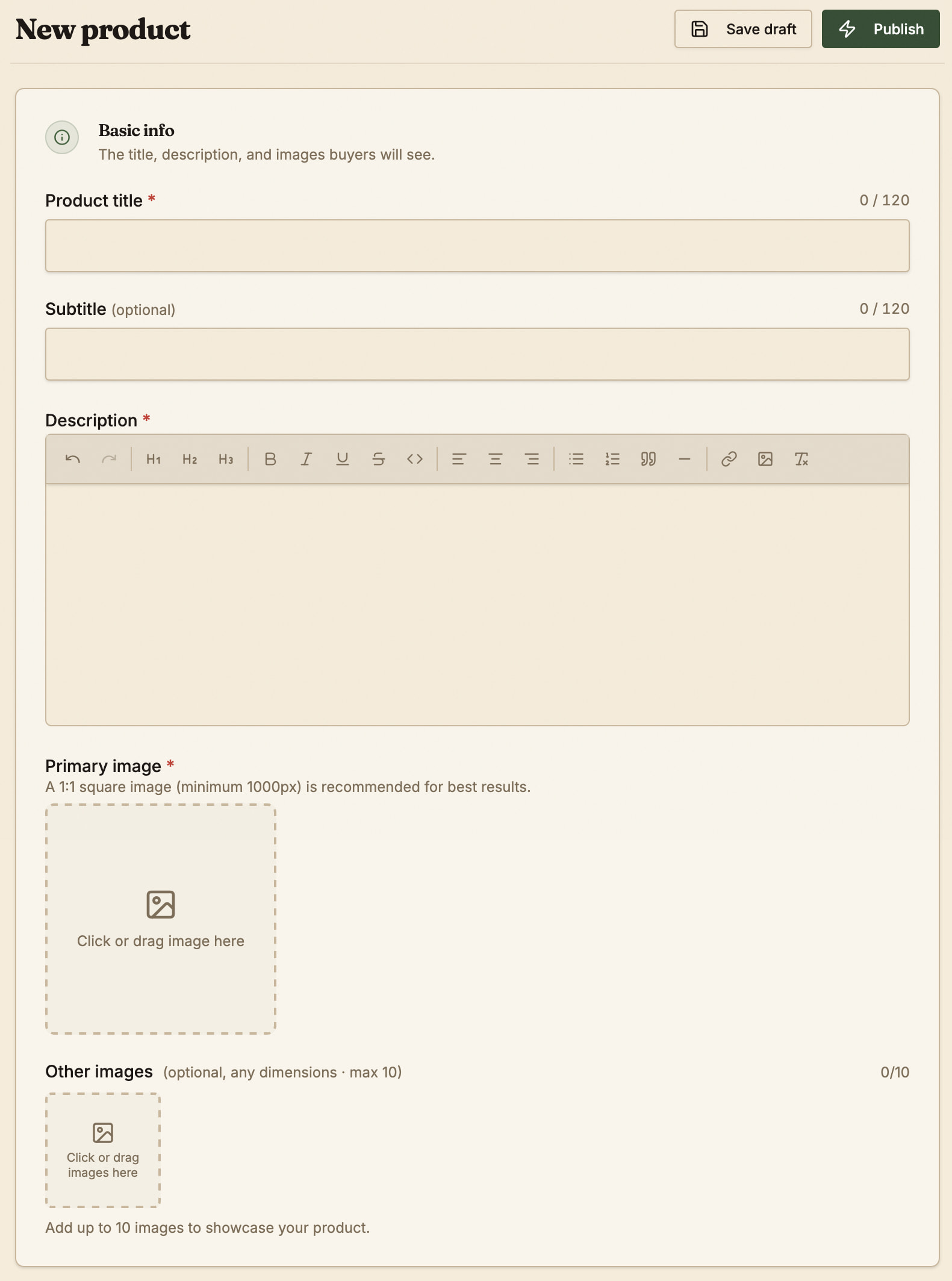
Basic info: Title, subtitle, description, and the main image buyers see first.
-
Product details: Taxonomies to help buyers can find your work, amongst other options. See: Categorising and labelling your products
-
Files: Digital downloads (PDFs, ZIPs, and other allowed types). See Adding product files and images
-
Print on demand: Add physical books available by print-on-demand. See Setting up print editions
-
Pricing: One or more tiers, prices, and which files each tier includes. See Setting up pricing for your products
-
External links: Places where other versions of your product van be found. See: Adding external links to products
Save and publish
-
Use Save draft to store work without going live. The only field required to save a draft is the title.
-
Use Publish when the listing is ready. After the first publish, the same button will show Update when you change a live product.
-
Use Switch to draft to hide a published product from the storefront. See Publishing and unpublishing products .
Note that your first two products will need to be reviewed by an admin before they are published. Allow up to 3 business days for reviews.
Add print later
- If you offer print, finish digital setup first, then use Print setup from the wizard or product list when you are ready. See Setting up print editions .