Print-on-demand lets buyers order a physical book from you. You upload your PDFs and choose size, binding, paper, and cover options.
Open print setup
-
Open the product from Products.
-
Go to Print on demand for that product from the product card or wizard.
You need a saved product before you can set up printed books.
Choose book details
-
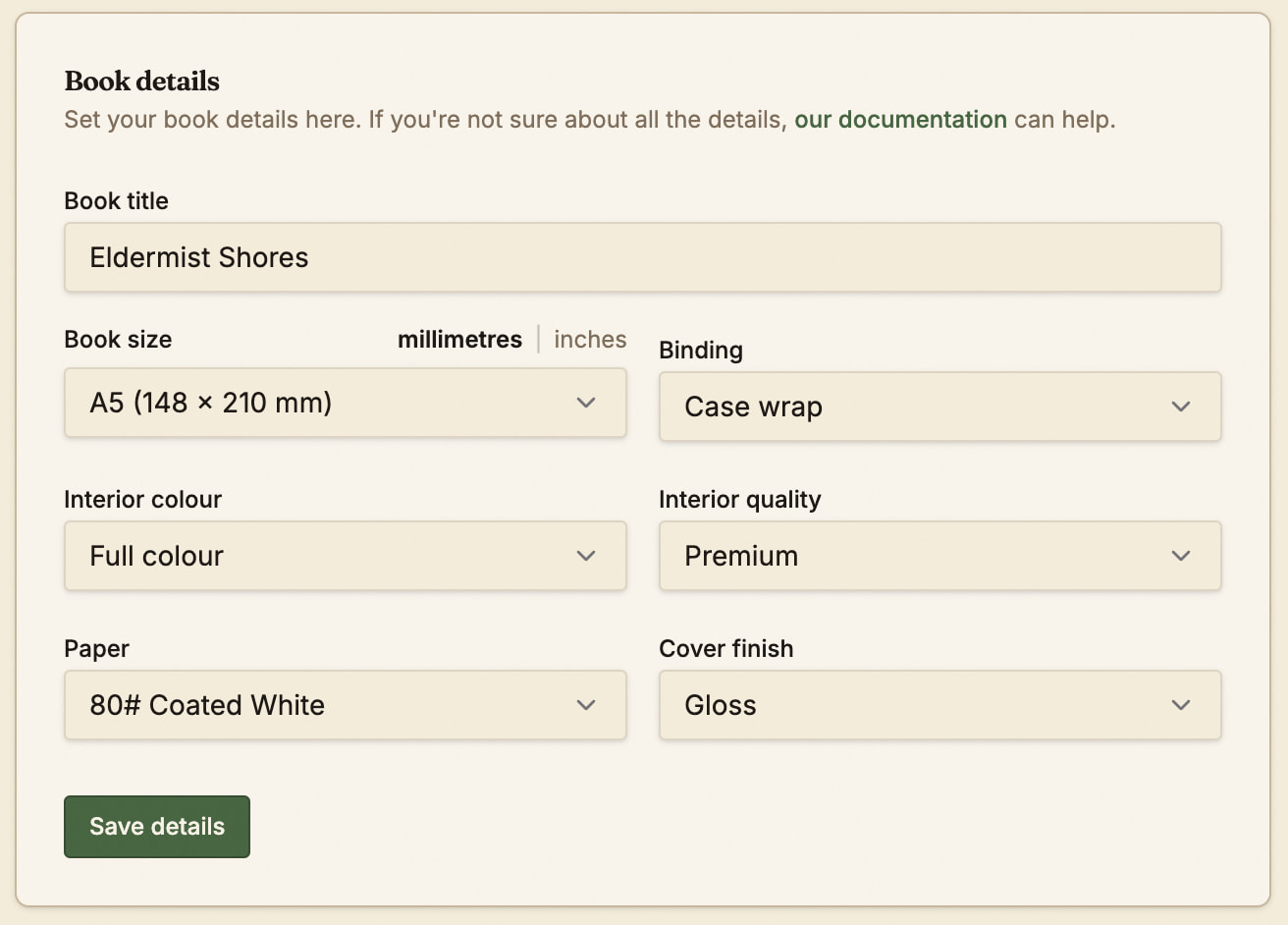
Give your book a name - it doesn’t have to match your product name.
-
Pick book size, binding, interior color (black and white or color), paper, cover finish, and related options the form offers.
-
You must save your book details before you can upload files.
Read this guide for how to prepare your PDFs for print:
Upload the interior file
-
Upload the print-ready interior PDF.
-
Wait until processing and validation finish. The page shows states such as waiting, validating, approved, or failed.
-
Fix any reported issues and re-upload if needed.
Upload the cover file
-
Upload the print-ready cover PDF.
-
Wait until processing and validation finish. The page shows states such as waiting, validating, approved, or failed.
-
Fix any reported issues and re-upload if needed.
Pricing
The page will show you the print cost for your book - pricing tiers cannot be set below this amount, and sales/coupons cannot reduce the amount below this.
See Setting up pricing for your products for more info.
Shipping and regions
Select a shipping destination to see an estimate for the shipping costs. These are the same costs your buyers will see at checkout.
Here’s a comprehensive guide showing where each book type is printed in the world: