There are three ways to import products in bulk into RPG Trader:
- CSV upload
- From your existing DriveThruRPG library
- From your existing Itch library
All imported products are saved as drafts.
Open bulk import
- Go to Dashboard then Products.
- Click Bulk import.
CSV import
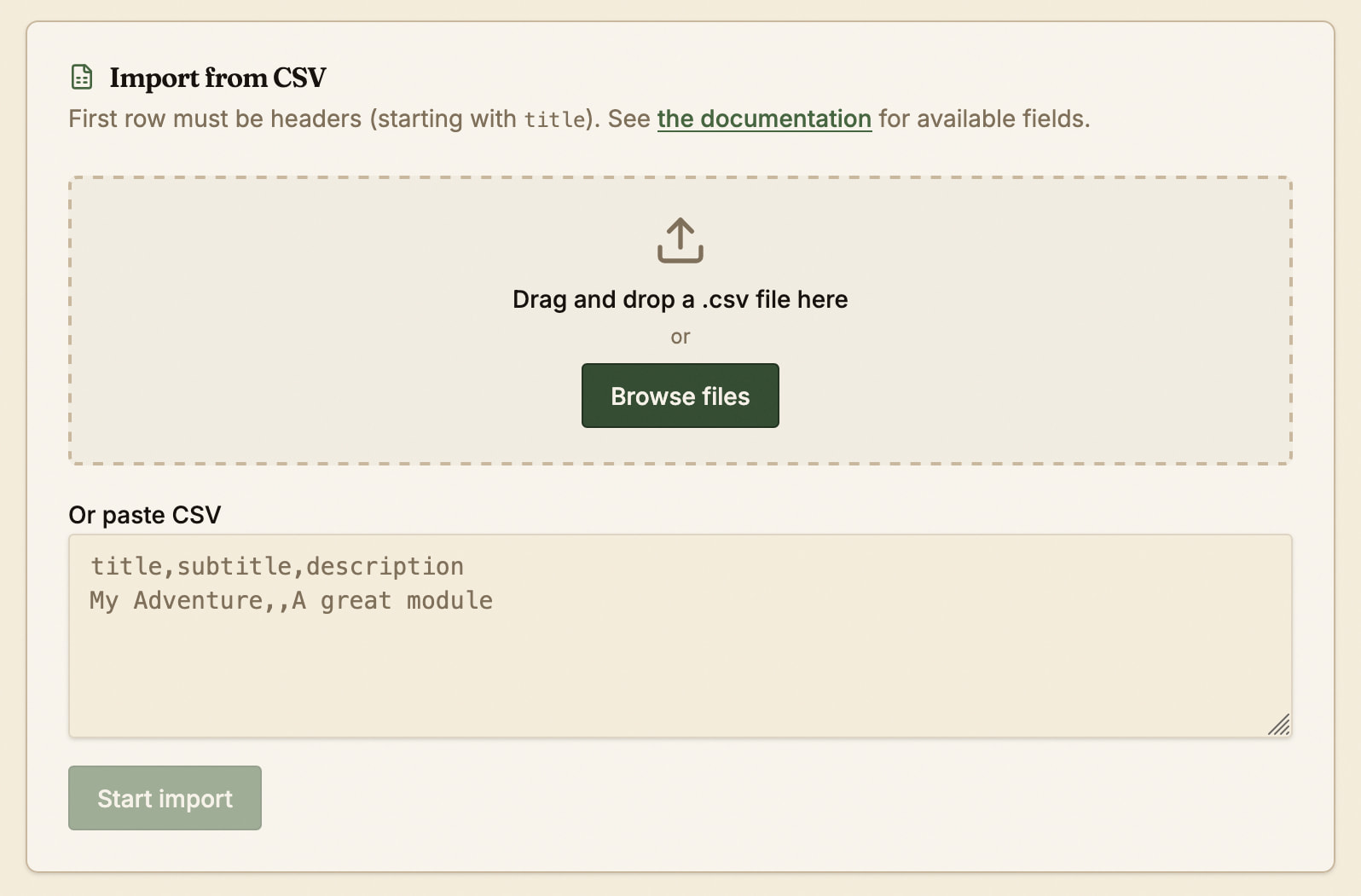
Prepare your CSV
- Prepare a CSV of your products to upload. The only required field for each row is the product title.
- Use a spreadsheet app and export as CSV, or build the file in a text editor.
- Include a header row with the field titles, including any fields you want:
title(required)subtitledescriptionprimary_imageother_images(comma-separated image URLs for the gallery)files(comma-separated file URLs)tier1nametier1valuetier2nametier2valuetier3nametier3valuetier4nametier4valuetier5nametier5valuetier6nametier6valuecategorylanguagegenretoneplaystylesettingsystemaudience_contentplay_requirementstagsuses_ai(usetrue,1, oryesfor AI-assisted creation)
- Images and files must be public URLs - they will be downloaded to RPG Trader and attached to your products.
- Taxonomy items must match those available on the site - the system will attempt to match them as closely as possible if they are different.
- For each tier number, provide both
tierNnameandtierNvalue, or leave both empty for that tier. You can connect files and books to tiers after bulk upload.
Start the import
- Drag a
.csvfile onto the drop zone, or click to pick a file. - Or paste CSV text into the text area.
- Click Start import.
Import from DriveThruRPG
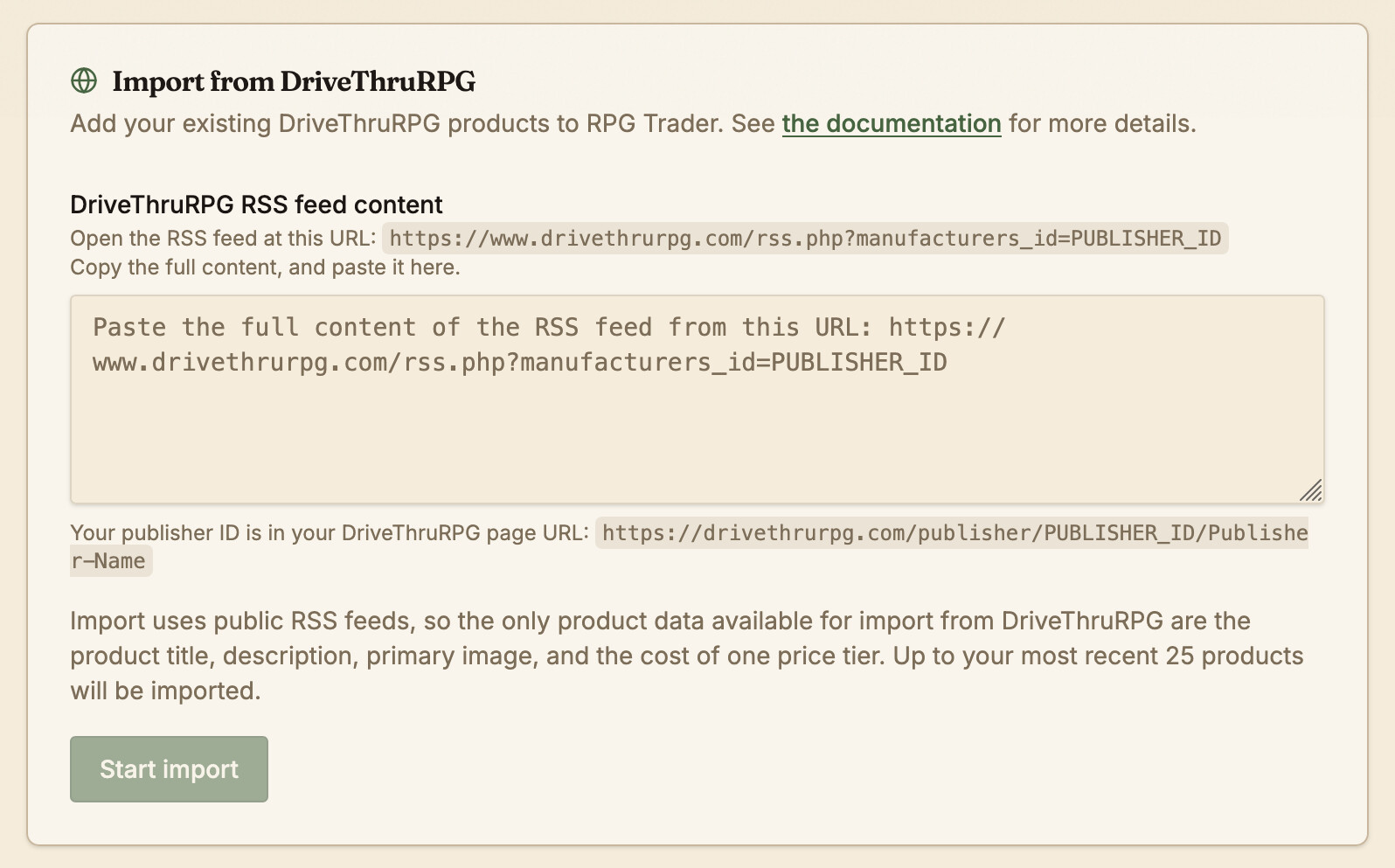
DriveThruRPG imports use the public RSS feed made available by the platform. As a result, there is limited data available for importing, but it will help you get started with your RPG catalogue much more quickly.
The only fields available for import from DriveThruRPG are:
- Product title
- Product description
- Primary image
- Cost of one price tier
You can edit these fields and all the rest of your product data after import.
Fetch your DriveThruRPG RSS feed
Automated reading of the RSS feed is not allowed, so you can follow this process to copy the content of the feed:
- Find your DriveThruRPG publisher ID. You can find this in your DriveThruRPG partner page URL:
https://www.drivethrurpg.com/publisher/PUBLISHER_ID/Publisher-Name
- Get your DriveThruRPG RSS feed using this URL template:
https://www.drivethrurpg.com/rss.php?manufacturers_id=PUBLISHER_ID
-
Open your feed URL in your browser.
-
Right-click anywhere on the page content, and click View source, View page source, or similar (the wording will depend on your browser). This will show you the raw XML of the RSS feed.
-
Copy all the content in the page and paste it in the DriveThruRPG RSS feed content field on the Bulk import page.
-
Click Start import to import your products.
Import from Itch
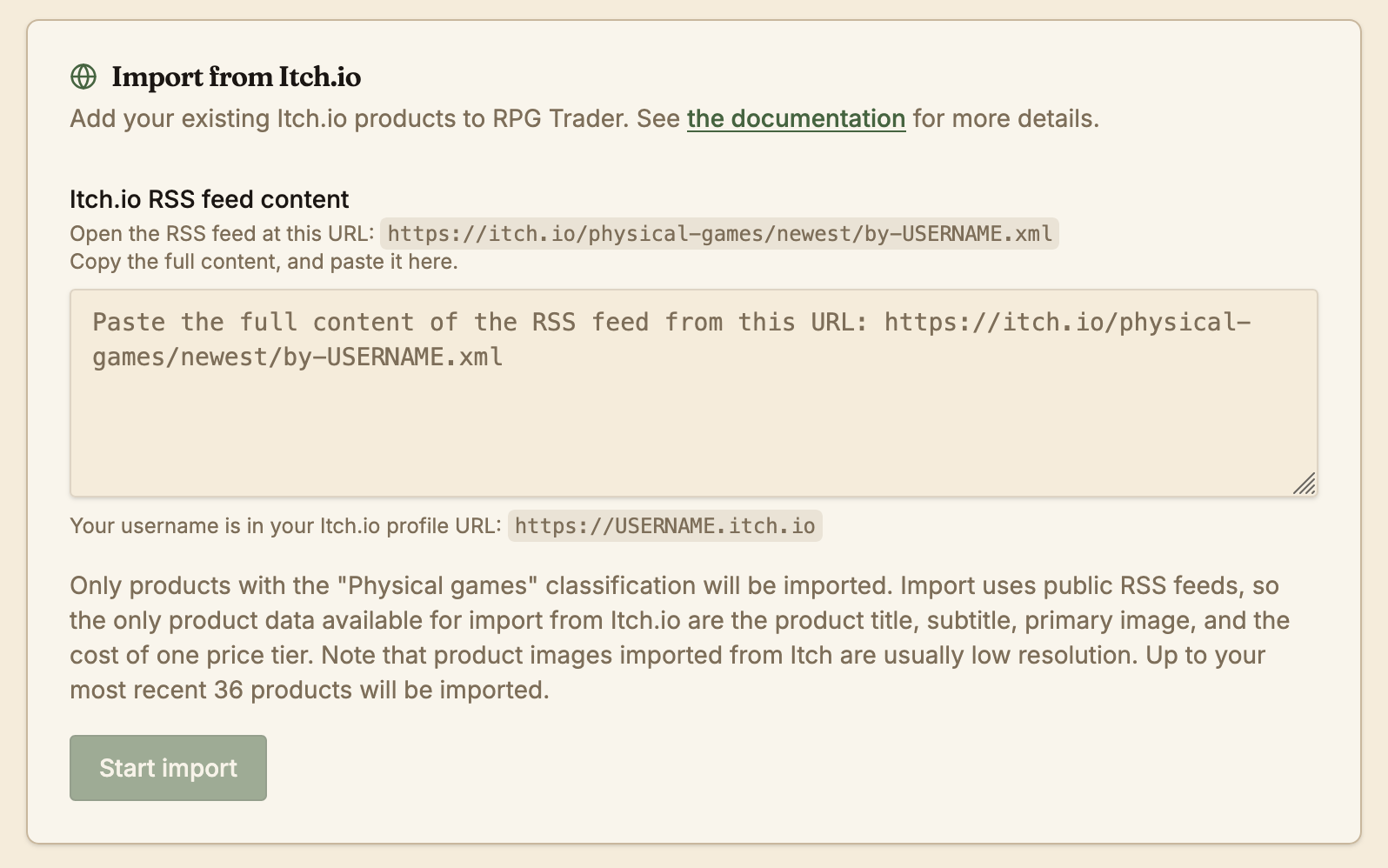
Itch imports use the public RSS feed made available by the platform. As a result, there is limited data available for importing, but it will help you get started with your RPG catalogue much more quickly.
The only fields available for import from Itch are:
- Product title
- Product subtitle
- Primary image
- Cost of one price tier
Note that product images imported from Itch are usually low resolution, and you may need to replace them after import.
You can edit these fields and all the rest of your product data after import.
Fetch your Itch RSS feed
Automated reading of the RSS feed is not allowed, so you can follow this process to copy the content of the feed:
- Find your Itch username. You can find this in your Itch profile page URL:
https://USERNAME.itch.io
- Get your Itch RSS feed using this URL template:
https://itch.io/physical-games/newest/by-USERNAME.xml
-
Open your feed URL in your browser.
-
Right-click anywhere on the page content, and click View source, View page source, or similar (the wording will depend on your browser). This will show you the raw XML of the RSS feed.
-
Copy all the content in the page and paste it in the Itch.io RSS feed content field on the Bulk import page.
-
Click Start import to import your products.
Track import status
- As you run an import, the page will update you on the upload progress.
- If there are any errors with the import, they will be reported.
Finish each product
New products are saved as drafts and available on your Products page.
- Open each new draft from Products.
- Add files, images, tiers, and details in the wizard. See Adding a new product
- Publish when ready. See Publishing and unpublishing products