RPG Trader supports three types of product bundles:
- Regular bundles for a creator to bundle their own products together at a single price.
- Collab bundles for multiple creators to bundle products together.
- Charity bundles for multiple creators to bundle products together with all proceeds going to charity.
These come with powerful tools for flexible management.
Creating bundles
To create any of these kinds of bundles go to the Bundles page in the dashboard.
Adding basic info to a bundle is just like creating a regular product. The key difference is that instead of adding files and books, you add your existing products to the bundle.
Bundle products
You can add as many products as you like to a bundle by selecting the products and pricing tier you want to add:
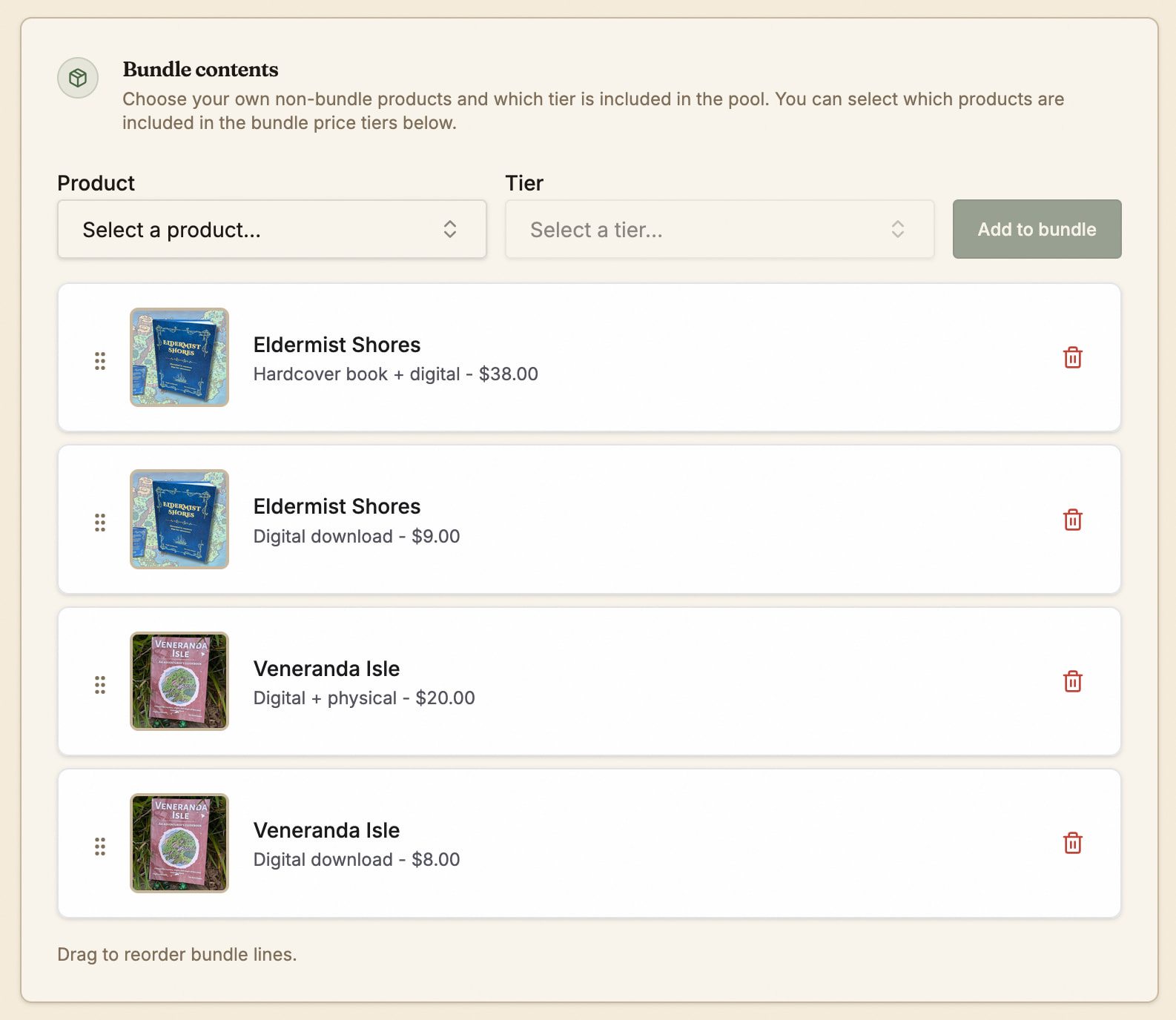
Products can be reordered by drag and drop as needed.
Pricing tiers
Setting up pricing tiers for a bundle is just like for regular products, except you select the products to include in each tier, instead of files or books. You can include any of the products you have added to the bundle in a pricing tier.
Bundle pricing tiers have all the same options as for products - free, pay-what-you-want, paid, maximum copies, multiple tiers, etc.
Images
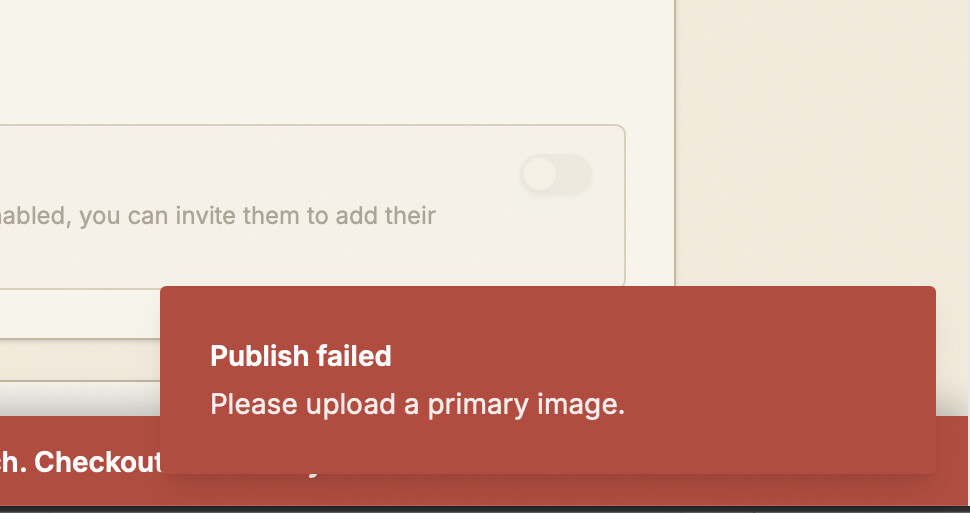
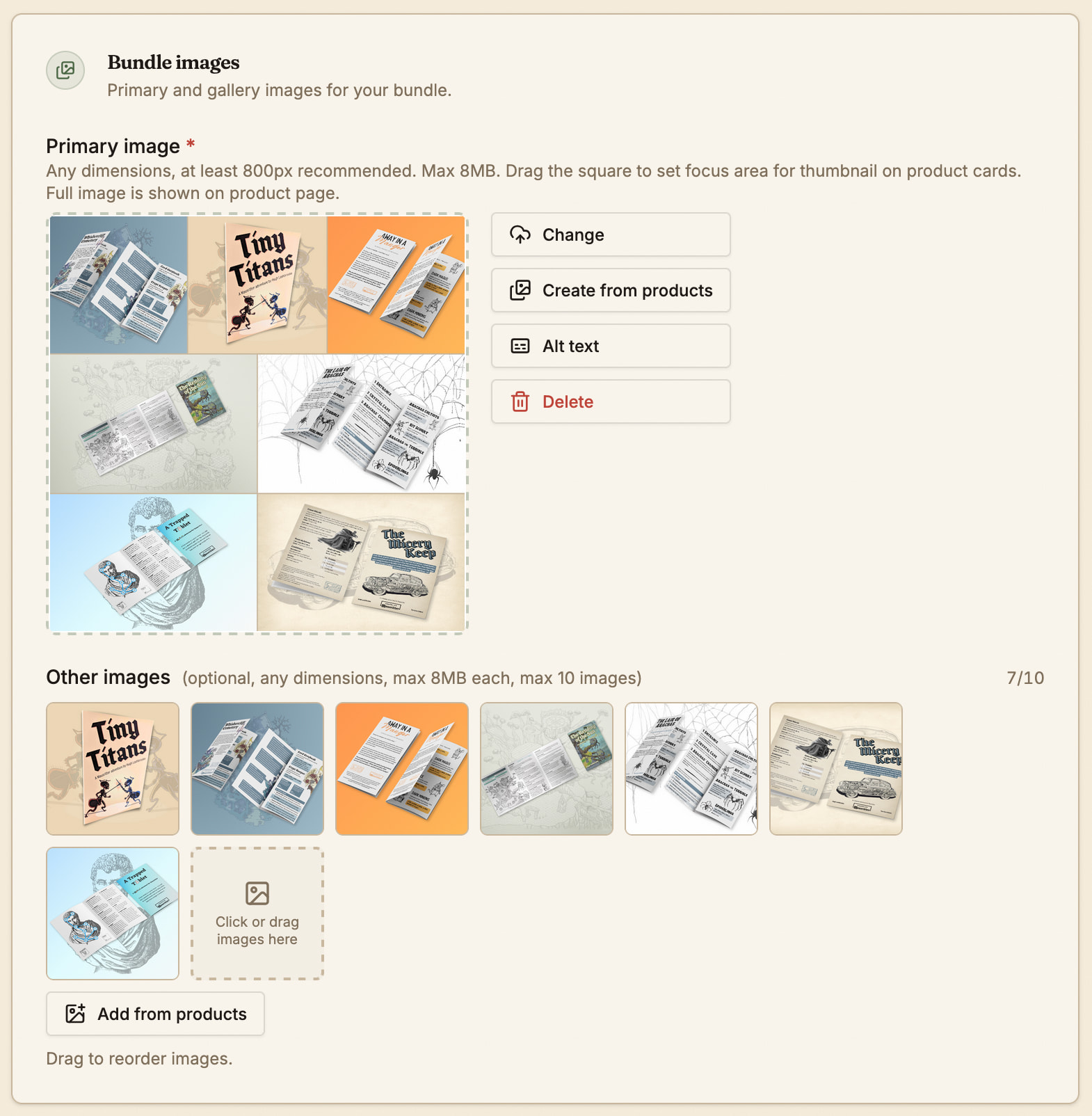
You can add the primary and gallery images like normal to a bundle, or you can import them from the products in the bundle.
For the primary image, the Create from products button will create a mosaic image using all the primary images of the bundled products. You can also add the primary images from the products to the image gallery with the Add from products button.
Categories and taxonomies
Add categories and other taxonomies like regular products or use the Import from products button to import all the terms from the bundled products.
Active window
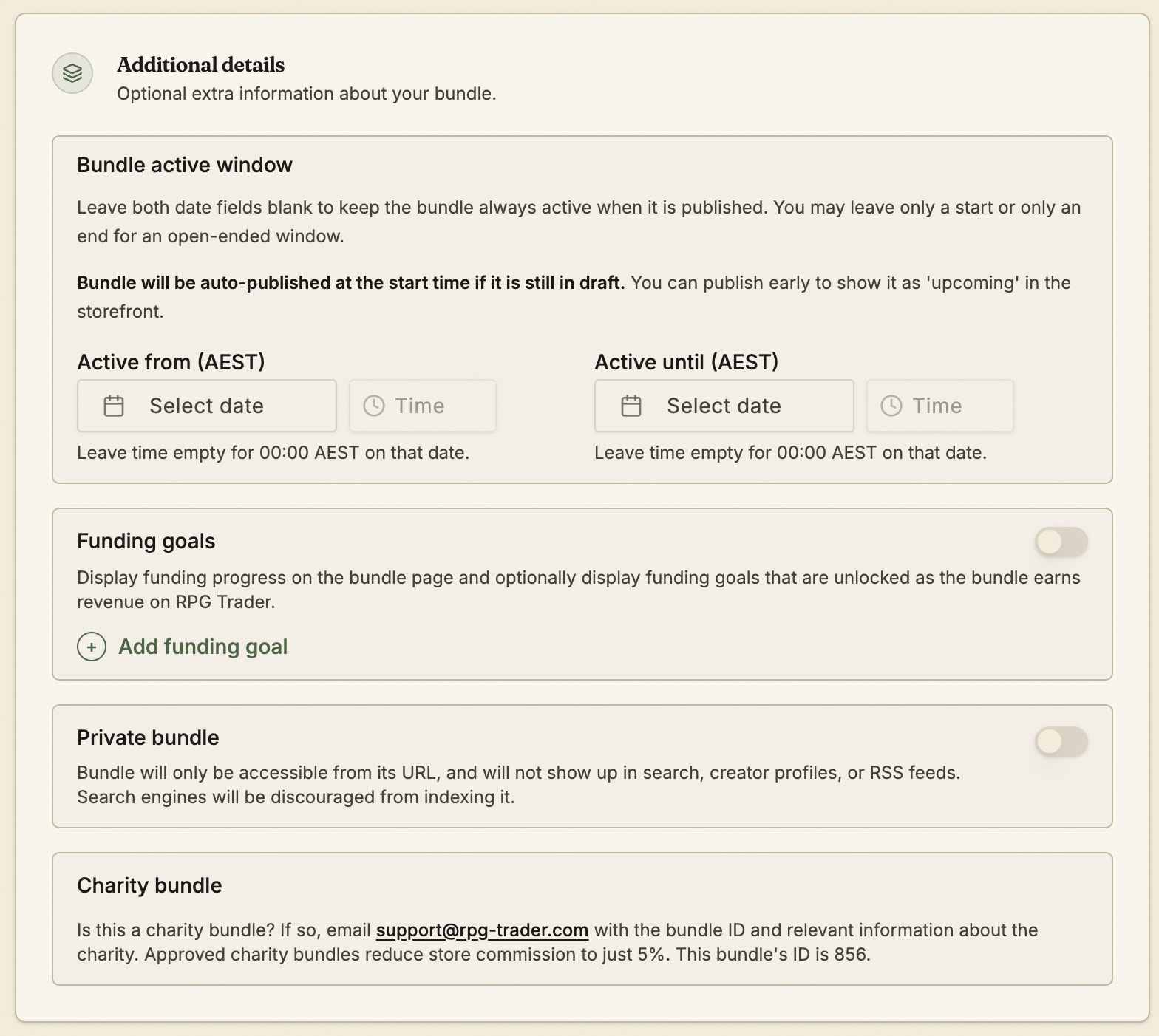
You can optionally set a start and end date for a bundle:
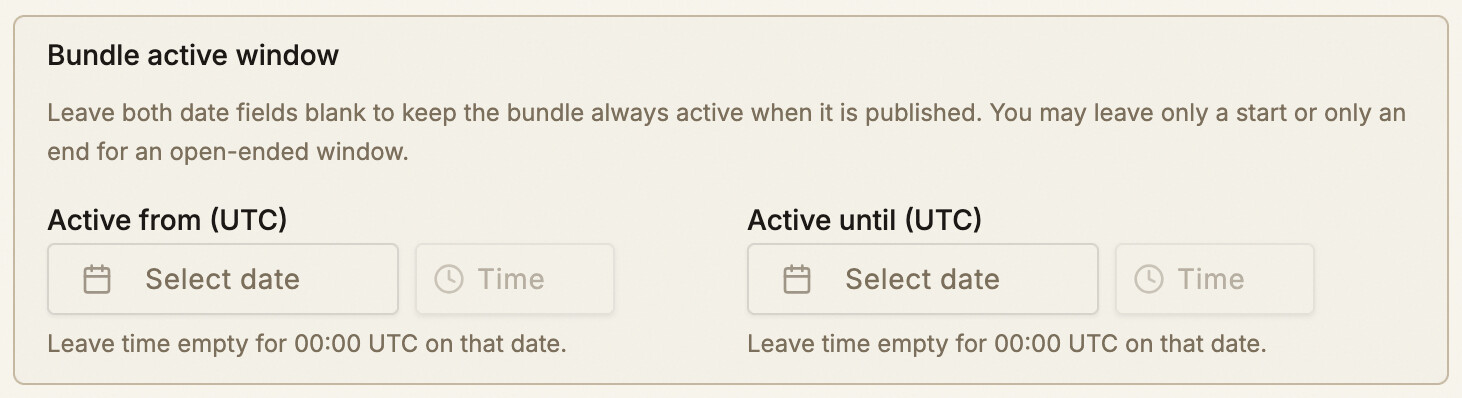
If dates are set, bundles will only be purchasable if they are published and inside their active window. If you publish a bundle before its start date, it will be visible on the site and an Upcoming badge will be displayed on it.
Total sales and earnings goal
You can choose to show the total sales figures for the bundle on the bundle page, along with an optional funding goals:

This can be updated at any time before or after the bundle is published.
Read this for more information about funding goals:
Collab bundles
Collab bundles are bundles that include multiple creators. You can enable this on any bundle using the Collab bundle toggle:
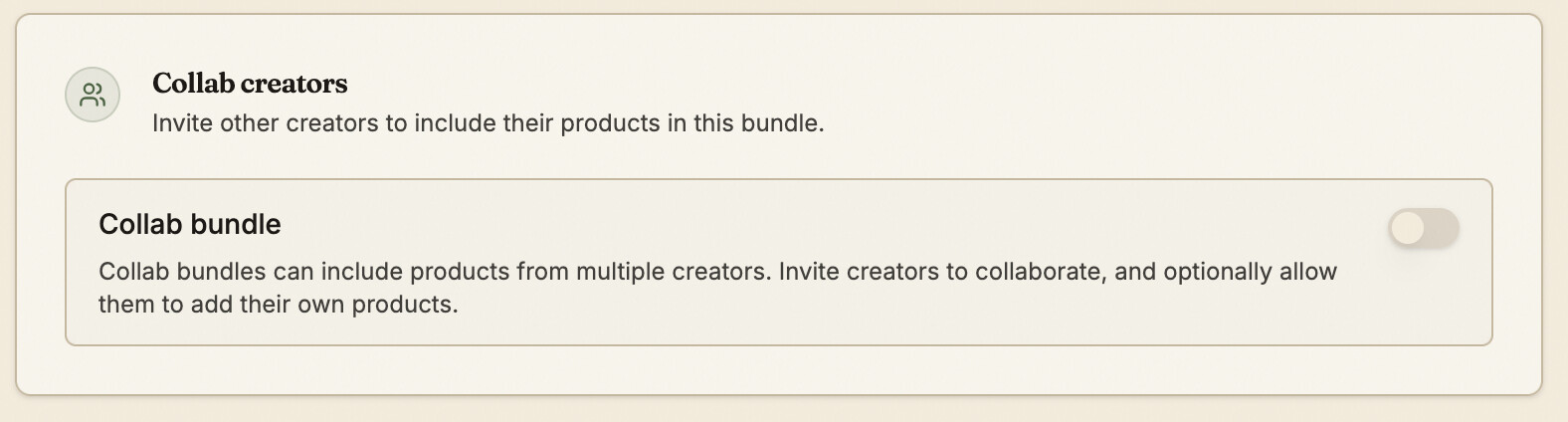
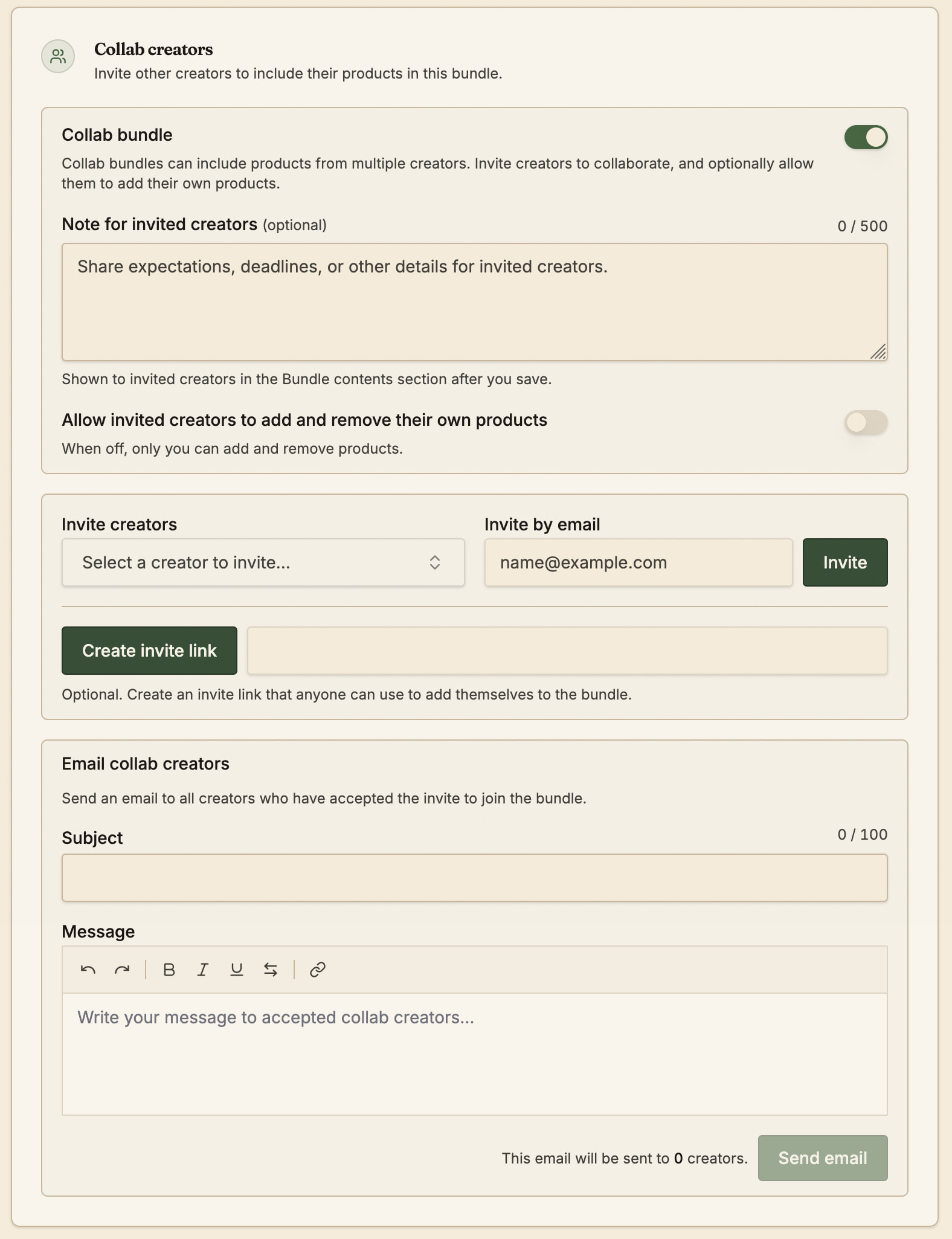
Once you have enabled a collab bundle, you will have options to invite creators, manage how products are added, and contact included creators:
Inviting creators
Creators can be invited to the bundle by searching for their creator name, adding their email address, or creating and sharing an invite link:
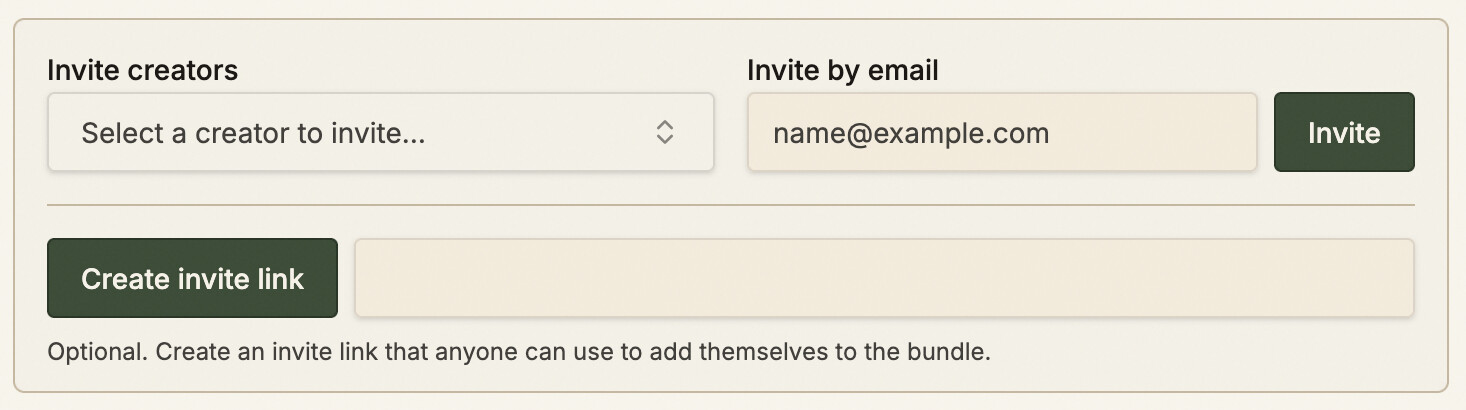
Invites can be withdrawn before being accepted, and added creators can be removed later.
Once a creator has been invited, their products can be added to the bundle.
Managing collab products
When setting up a collab bundle, you can allow creators to add their own products, as well as specify rules for how many products they can add and what products can be included:
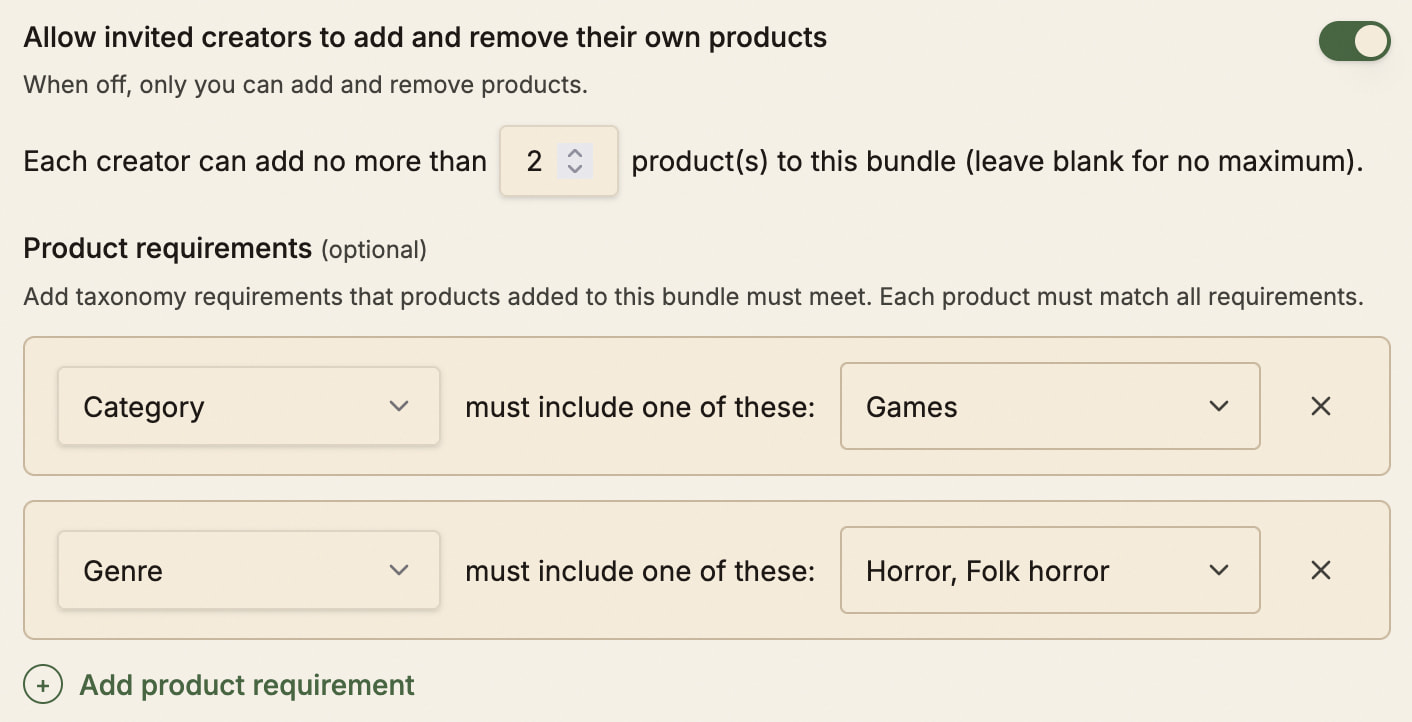
You can set as many requirements as you like, allowing you to create collab bundles for any theme, system, or type of game. Saved requirements are displayed to invited creators when adding their products, and they will not be able to add products that do not meet all the requirements.
Regardless of these settings, only the bundle owner can set pricing tiers and all other bundle details.
Revenue share
Bundle revenue can be set up to share amongst bundled creators in any way the owner chooses.
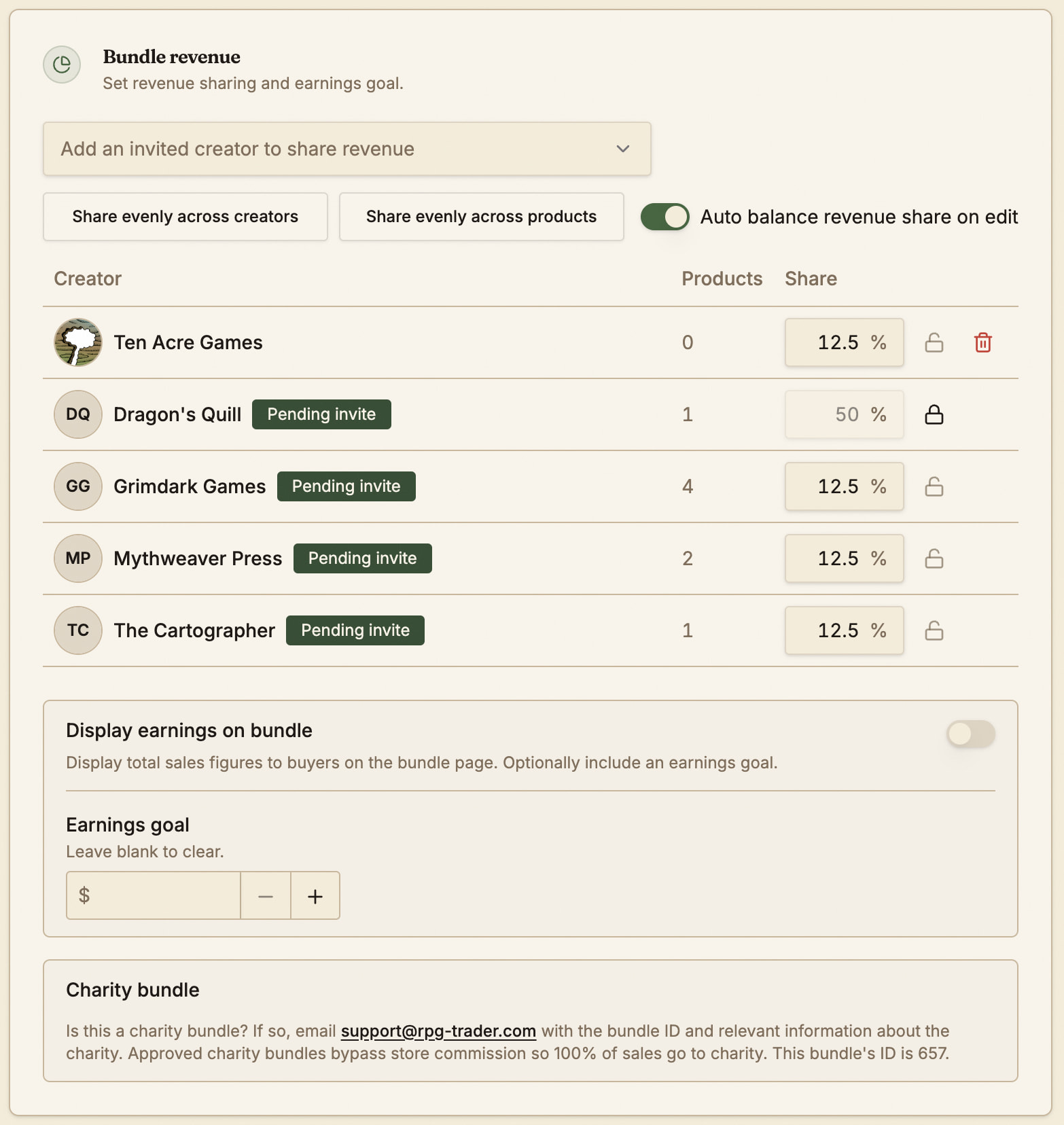
You can share revenue evenly across all creators, or all products, as well as lock selected creators at a certain percentage.
Creators who have been invited to the bundle, but do not have any products included can also be optionally added to the revenue share.
Creators who have not yet accepted their invite will be labelled as Pending invite - a collab bundle cannot be published until all included creators have accepted their invites.
Additionally, once at least one sale of a collab bundle has been made, all details for products, collaborators, and revenue share cannot be changed.
Charity bundles
A charity bundle is a collab bundle where the proceeds go to a selected charity. In order to turn a collab bundle into a charity bundle, email support@rpg-trader.com or post in the Support category, quoting the bundle ID and giving details about the charities you wish to support.
If you are raising money for an individual, informal group, or personal cause, you can do it through a standard collab bundle.
Reduced store commission
Once a charity bundle is approved, the store commission for the bundle is reduced to 5%, meaning even more of the money earned goes directly to the charity than usual.
Ensuring charities get paid
To ensure money is effectively paid to the charity directly, it’s best to create an RPG Trader account for them, enable their creator tools, and set their payout methods.
You can then invite them to the bundle as described above, and add them to the revenue share even without them having any products in the bundle.
Identifying charities to buyers
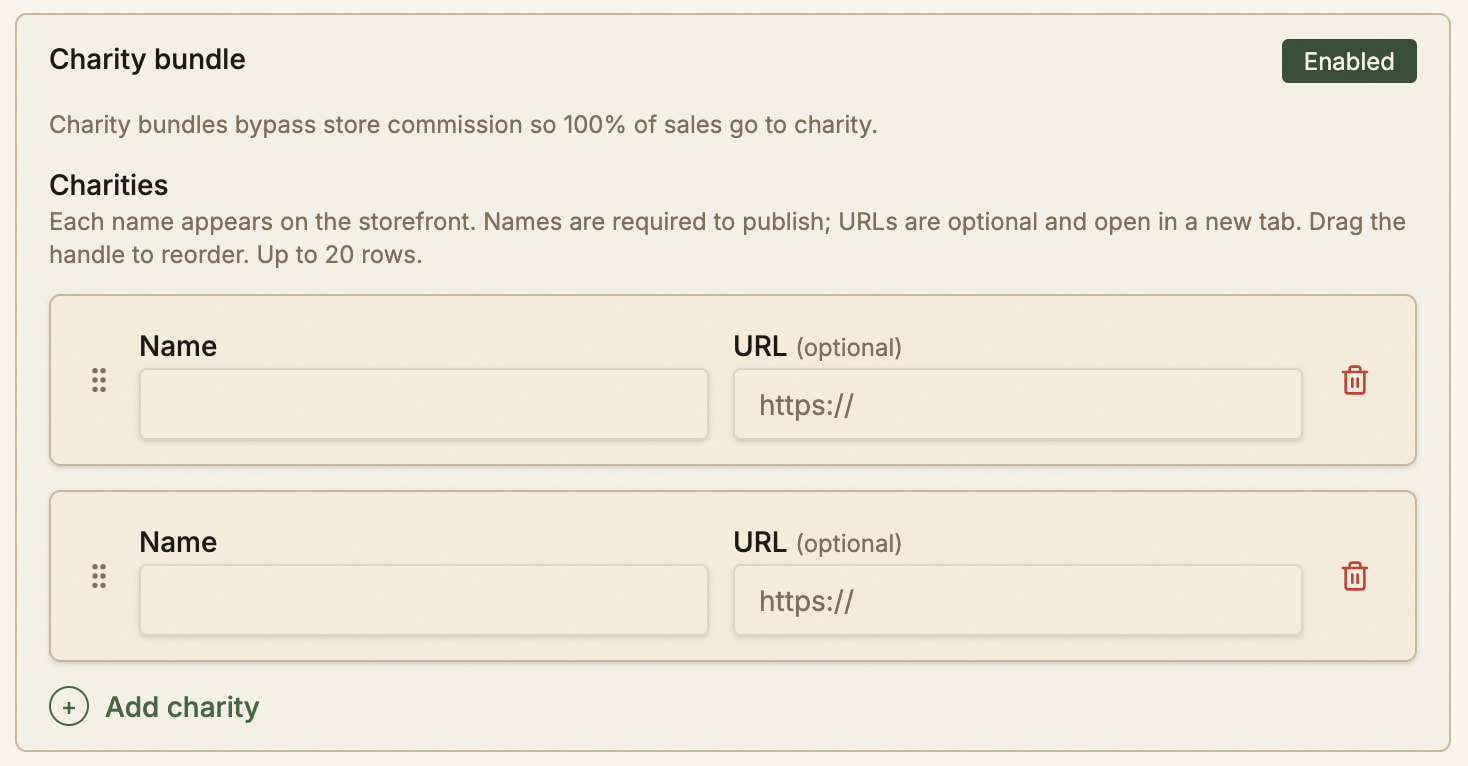
You can set the name and URL of each beneficiary of the bundle proceeds, with each one displayed on the bundle page to buyers: