Once you have enabled creator tools and are able to publish products, you can invite others to manage your creator profile and products alongside you.
This is especially helpful for teams to manage the same account and products without having to share login details.
Adding team members
Add team members from the Creator profile page in the dashboard, by adding their email address in the Team section.
The email address must match their RPG Trader account, or they will be prompted to create a new account.
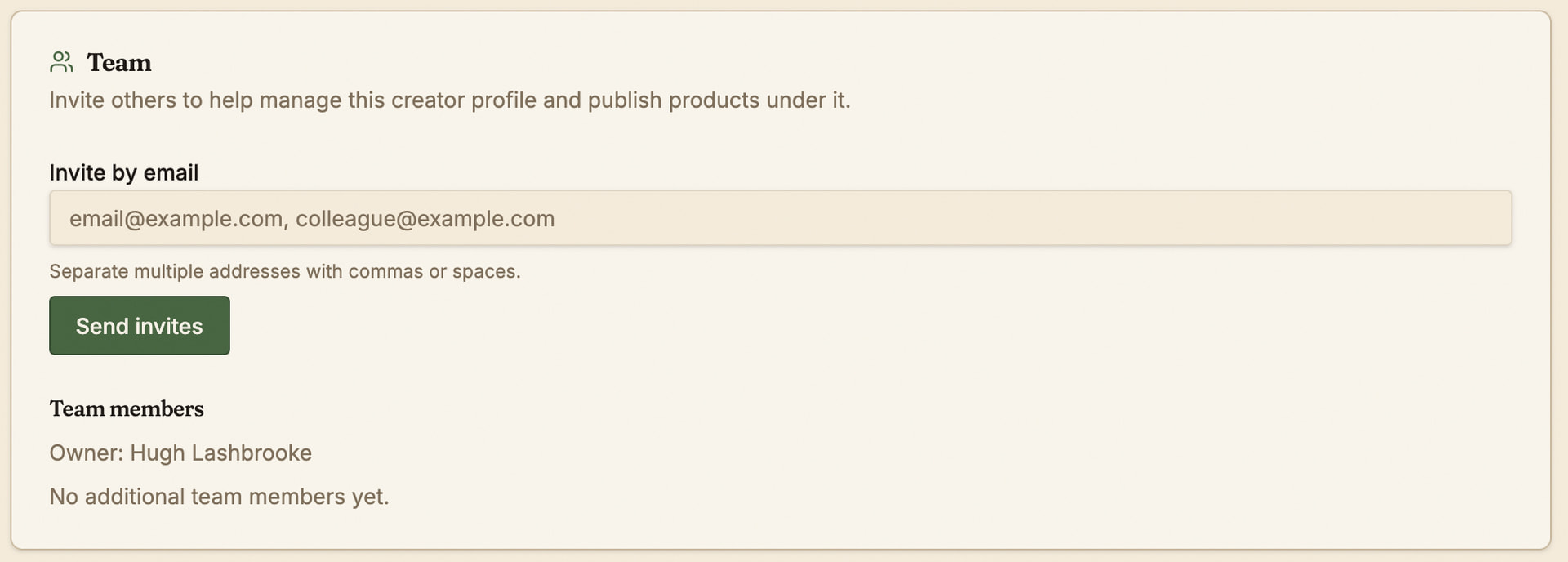
Invited and accepted team members will display under the Team members heading.
Invites must be accepted before the user can manage the creator profile and products. When a user accepts an invite, they can choose to migrate their existing products and/or earnings to the new creator profile.
Team member access
Team members have access to everything the original owner does - they can see everything in the creator tools menu and manage all products and bundles.
They can also see earnings for the creator, with the only restriction being that they can’t pay out the creator’s earnings. Only the owner can do that.
Switching creator profiles
Once a user becomes a team member for a creator, they can switch between their own creator profile and any ones for which they are a team member.
To switch profiles, click the creator name in the sidebar to open the switcher and select the profile you wish to manage.
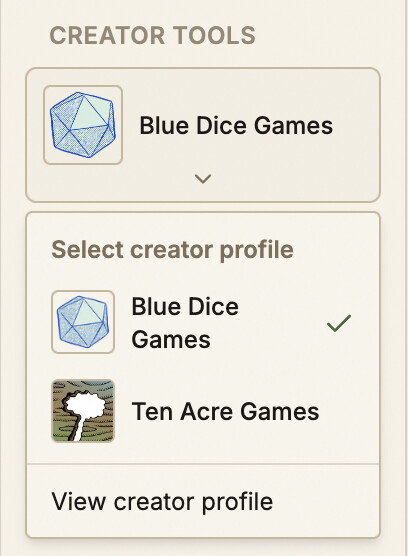
Once you switch profiles, everything you see in the creator tools pages will be for the selected creator profile. You can switch between them at any time.