RPG Trader allows you to import multiple orders at once. This is useful if you have taken payment for orders elsewhere, such as through a crowdfunding project, and you want to fulfil their delivery through the marketplace.
Bulk order imports can be done for digital and print-on-demand order fulfilment. The process is simple and takes the hassle out of fulfilling large orders.
Access bulk order import
On the Sales page in the dashboard, you will see a Bulk order import button at the top of the page:

Clicking that will take you to the bulk order import page:
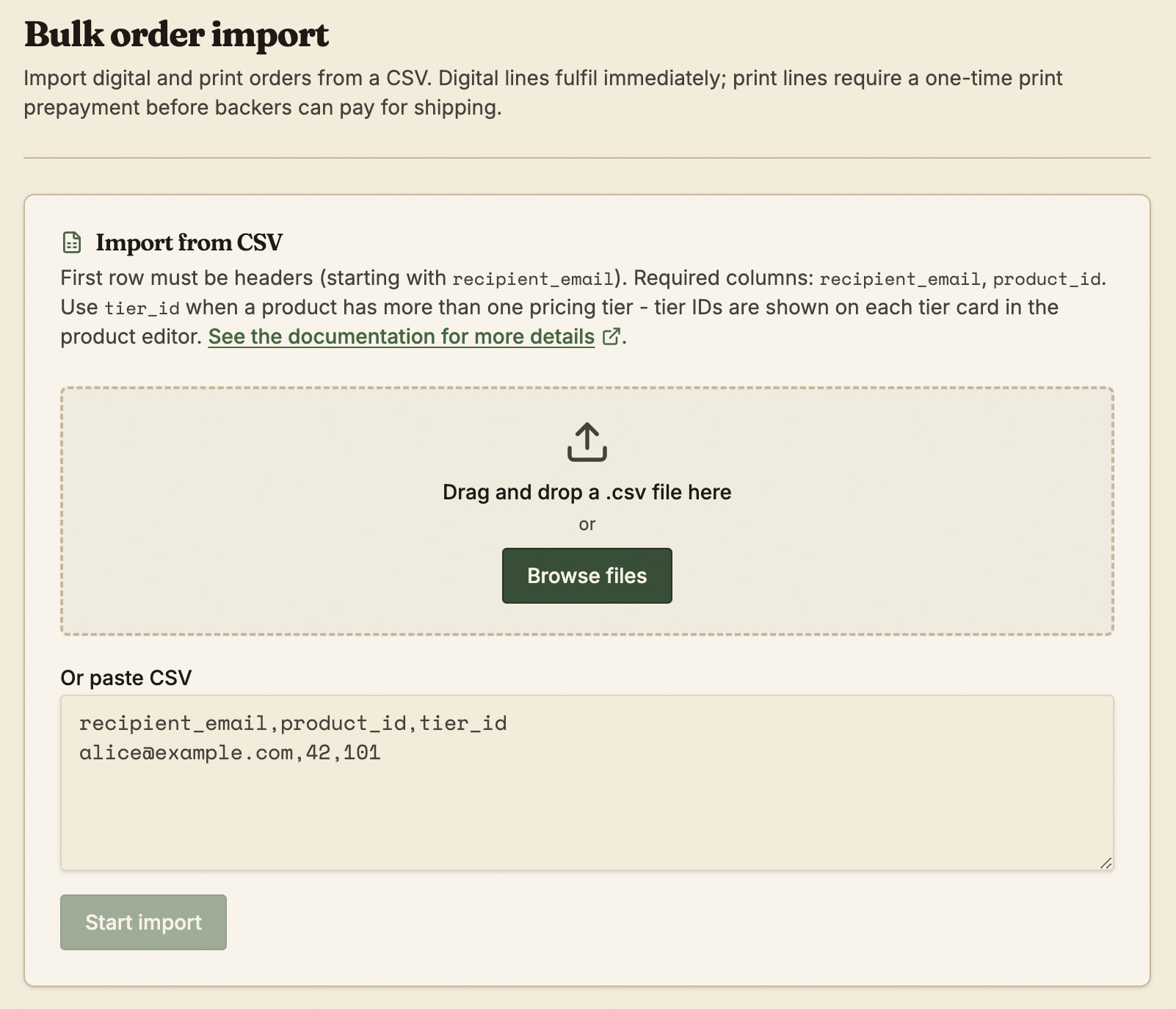
Here you can upload or paste a CSV to import your orders.
Preparing your CSV
When preparing your CSV file, you need to add the following required fields:
-
recipient_email: The email address of the person receiving the order. If the recipient has an account on RPG Trader, this will assign the order to their account. If they do not, a guest order will be created for them. -
product_id: The ID of the product to include in the order. Products must be published, but can be marked as private. If there are multiple products for the same recipient, create one row for each with the samerecipient_email. You must be the listed creator of all included products. -
tier_id: The ID of the pricing tier to include in an order. If the product only has one pricing tier, you can leave this out. Tier IDs are shown on each pricing tier card in the product editor. This can include tiers that are marked as creator-only.
The following fields are optional:
-
order_reference: Recommended. A unique identifier for the order (for example, a crowdfunding project name or ID). This is a case-sensitive field with a maximum length of 100 characters. See the note below about how this helps prevent duplicate orders being created. -
recipient_name: The full name of the recipient. If therecipient_emailmatches an existing user, this field will be ignored in favour of the user’s stored name. -
note: A note that will be added to the order that the recipient will be able to read after they receive it.
All recipients will be sent an order complete email after import, including a note that you created the order for them.
Importing your CSV
Once your CSV is prepared, simply upload it on the Bulk order import page. The page will tell you how the import goes, with live updates, including reasons for rows that cannot be imported.
What happens after import
The next step after import depends on whether your imported order contain pricing tiers that include print-on-demand books or not.
Digital-only imports
Digital-only bulk order imports are complete once the file has successfully uploaded. There is no further action required.
If all the pricing tiers included in your import only include digital files and no print-on-demand books, then you don’t need to do anything else. The orders will be created for the recipients, and they will be notified by email, with a link to their order and download instructions.
Print-on-demand imports
Orders with print items require one additional step from you before completion.
Paying print costs
If your imported orders contain physical print-on-demand books, a prepay order will be created that includes the print costs of all the included books with you as the purchaser. It does not include shipping costs as this is for you to pay the print costs before your buyers pay their shipping costs.
A button linking to the order will be available immediately after import is complete, and you will receive an email with the link. You need to pay for this order to complete the import.
The print cost order must be paid within 1 month or it will expire and you will need to re-import the orders. You will receive a reminder email 5 days before the expiry date if you have not yet paid for it.
Once you have paid for this order, you do not need to take any further action.
Recipients paying shipping costs
Once you have paid for the print cost order (and only once you have done so), each recipient who is receiving a print-on-demand book from your import will have an order automatically created for them that includes the shipping costs to their location.
You do not need to collect shipping addresses for your recipients - they will fill it in themselves to determine their available shipping methods and costs.
All recipients will be notified about this order by email and sent a link to their order details page where they can enter their shipping details, and pay for it. Once they have paid for shipping, their books will be printed and shipped to them like normal.
Any digital products included alongside the print-on-demand books will be available for the recipients to download immediately, even before they pay for the shipping costs.
Tracking recipient orders
Once you have paid for the print costs, you no longer need to do anything else for the orders, but you can track them in your dashboard.
On your Sales page, you will see an order titled “Bulk print prepay” followed by the order ID. This will show you how many buyers still need to pay their shipping costs. Clicking on the order will expand it to show you the individual orders and their statuses:
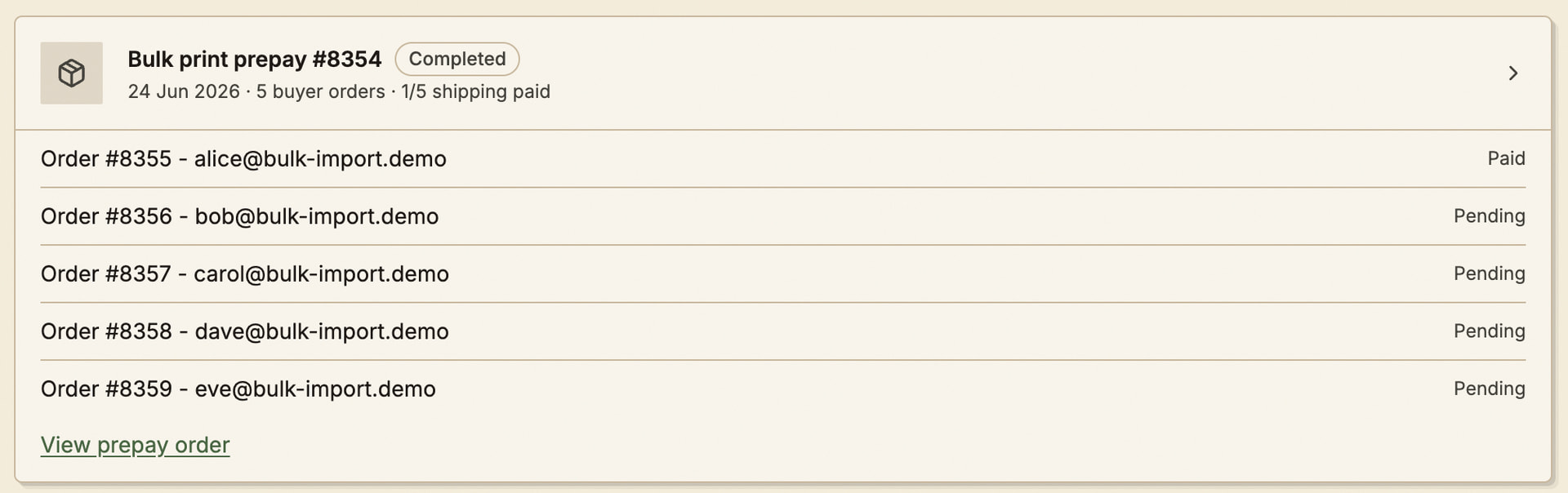
You can’t usually see your buyers’ email addresses, but since these are orders you imported with that data, you will be able to see them here.
The order details page for your prepay order will also show the number of recipients who have paid for their shipping.
Summary of the import flow
To make the flow more clear, here’s what happens when you import multiple orders in bulk:
-
You prepare and upload your order import CSV.
-
Products that only include digital files are immediately sent to each recipient in a fresh order.
-
If any products include print-on-demand books:
- An order is created for you to pay the print costs.
- Your recipients each receive an order to pay for their shipping costs.
- Books are printed and shipped to each recipient as they complete their shipping payments.
Preventing duplicates across imports
While the order_reference field is optional, its use is highly recommended. Including it can help you prevent duplicate orders and frustration later on:
-
In one import file, if there are multiple rows for the same buyer that all have the same
order_reference(or they have noorder_reference), they will all be grouped into one order for that recipient. -
If you run an import that includes the same recipient with the same
order_referencethat you used before, it will add any new products in the import to their existing order and email them to let them know. It will not send the same products they have already received. -
If no
order_referenceis present, each recipient in the import will receive a single order with all their products, and running the import again will create another order for them with all the same products.